Tapping on keys might be more natural for most people than actually writing in this day and age, but for those who miss the days of pen and paper Google’s latest app is for you. It’s the Handwriting Input keyboard, a simple app that lets you input text simply by writing it out.
While typing might be faster for most people, a handwriting solution can be more comfortable and natural for those who write in languages that are more complicated, such as Asian languages and Arabic. It works all the same no matter which language you want to write in, though, so even if it would be a novelty for you it’s a cool keyboard alternative to download.
It comes with 82 common languages, which should be enough to cover most of the Android user base. Go ahead and give it a try by grabbing it from Google Play right here.
Keyboard competition in Android is fierce. With so many virtual keyboards options out there looking to become your default, SwiftKey has long been the keyboard we trust to handle our erratic screen taps. It was nearly a year ago, SwiftKey went full-on free in the Google Play Store, offering up instead paid themes users could download to change up the look of the keyboard. It was a great move to be sure and — despite having already paid for the app years before that — one we had no problem getting behind.
But new changes headed to SwiftKey are leaving us feeling… well, not quite as enthusiastic. As detailed on their blog, the keyboard replacement is now adding “SwiftKey Hub,” their all new slide-out settings menu that essentially replaces the previous settings interface by making it available straight from the keyboard itself.
It’s broken up into 3 man tabs: Personalize (stats, support, SwiftKey Cloud login), SwiftKey store (themes), and Settings Menu (resize keyboard, advanced settings, etc.). We also noticed the SwiftKey logo appearing on the space bar. Ew.
SwiftKey also briefly talked about Dashlane integration for the secure storage of passwords. Dashlane uses AES-256 encryption and works with SwiftKey (Beta-only for now) to auto-insert passwords. Since all your passwords are store in Dashlane, you wont have to worry about SwiftKey having access to them. But in order for everything to work, you’ll need to also have the Dashlane Android app installed.
We’re not entirely sure if adding a slide-out settings menu makes the most sense for a keyboard, but SwiftKey says additional features will arrive at some point in the future. In the meantime, you can grab the latest beta here to try out the new settings interface for yourself, or simply wait until it goes live in the Google Play Store after it’s been tested for a bit.
We know, it’s going to be tough for anyone already invested in their favorite keyboard app to try something new, but we implore you to give Fleksy a shot. After recently adding a handful of amazing new features, it’s been fighting for the top spot in our favorite keyboard apps ever. Yeah, it’s that good.
Right now, Fleksy is allowing anyone with the free (trial) version of their app to unlock the full version for free. All you have to do is download the free version of the app (uninstall and re-download if you already have it installed) and when you sign into their cloud service, you’ll unlock the full version for free.
Normally the paid version runs about , which isn’t much, but this will encourage new users to give them a shot. Especially if all you’ve used is the official Google Keyboard or SwiftKey. Fleksy really does offer something different with aggressive auto-correct that allows you to sloppily type whatever you like and the ability to use a combination of gestures to undo corrections, delete words, or add words to the dictionary. Once you get in the swing of things it quickly becomes 2nd nature, so try sticking with it for a few days.
You can find the free version of Fleksy down below.
To say we’re over Lollipop and its shenanigans would be an understatement. Right now, we got our eyes locked on Android M and all the improvements and polish the future Android update looks to bring to the platform. There’s a lot of stuff being uncovered almost everyday — and we’ve shown you much of that already. — but if you’re wondering what Android M has in store for tablet user, it seems Google’s got your back.
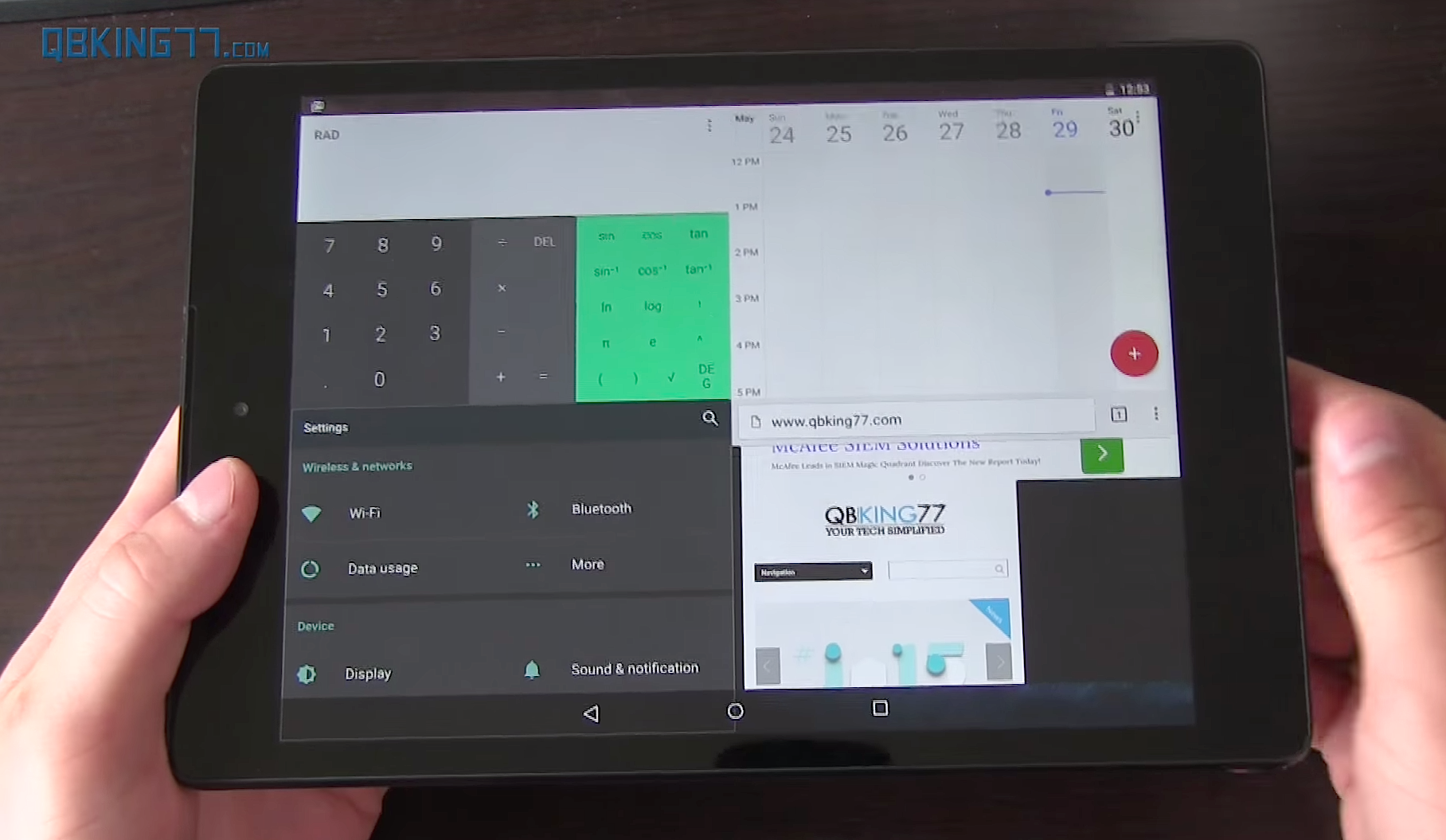
Our friend Tim Schofield, better known around Android circles as Qbking77, uploaded a video showing off some much needed features heading to the Android M release. He discovered that the default Google keyboard actually features a split typing mode for use on tablets where your thumbs have trouble reaching all the keys. It doesn’t appear to be available for smartphones, even ones as big as the Nexus 6 but that could change in the future.
There was also an all new multi-window mode that actually isn’t available in any of the settings by default, but can be added only after tinkering around with the build.prop. Once the necessary changes have been made, the new setting can be toggled in the Developer options. It works pretty well even in this early state, with a button that appears in an app’s title bar whenever opening Android’s recents menu.
When pressed, a menu pops up asking you to specify the layout. It’s a little “hack-ie,” but we’re sure it’ll be polished up in time for M’s release later this year. We were actually surprised at how well everything worked. Even with 4 apps open at the same time, scrolling was smooth and everything loaded up quick.
Other small improvements like the notification shade the moves around the top depending on where you initiate the pull down gesture is also a nice touch. It’s surprising really. All these changes are somewhat small but when combined, make for an OS update that already has us drooling. Why these couldn’t have been included in Android Lollipop is anyone’s guess, but given Lollipop’s dramatic UI overhaul, I’m sure they just didn’t have time. We will admit, it’s nice seeing Google — who typically takes the bare bones approach with their apps — going this extra mile to add more user customizations like this. Choice is good. Check out Tim’s full video down below.
A new update to the official Google Keyboard app is hitting the Play Store today. The update brings with it a handful of useful new features, while removing a few you may not even miss. Or then again, maybe you will. The update — now on version 4.1 — adds the ability to sync your personal dictionary with your Google account, so you can share it across devices (or take it with you when you upgrade to something new).
Simply select “Google Keyboard Sync” from the new Accounts & Privacy setting followed by the Google account you’d like to backup your dictionary to, and you’re all set. The new privacy setting also allows you to delete your cloud data, or opt out of Google’s statistics should you feel the need. Oh, and for those that prefer typing on physical keyboards (like one of those fancy Bluetooth ones), emoji are now fully accessible by pushing the alt key.
As for things that have been removed, Google no longer allows you to swipe entire phrases by sliding your finger down to the space bar. Can’t say we’ll miss. Another feature you’ll no longer be able to select is the auto-correction aggressiveness, now replace by a single toggle to enable it or not. Previously, the Google Keyboard allowed to you choose the auto-correct level — modest, aggressive, or very aggressive (our favorite) — and while we have no idea what it is now by default, it seems you’re stuck with it.
One feature we’re not seeing the split keyboard for tablets that was introduced in Android M. We’re sure Google is working on it though and are confident it will pop up in a future update. You can update to the new Google Keyboard 4.1 by visiting the Google Play Store, or manually download/install the app right here.