We take user manuals for granted these days. Most devices come with small tutorials to show you the basics, and then leave you off to explore your new toy with glee.
But if you’re the type who likes the informative literature that’ll show you the ins and outs of your device before using it, then you’ll be happy to know that the manual accompanying some of 2015’s most anticipated phones — the Samsung Galaxy S6 and the Samsung Galaxy S6 Edge — is already available for your viewing pleasure.
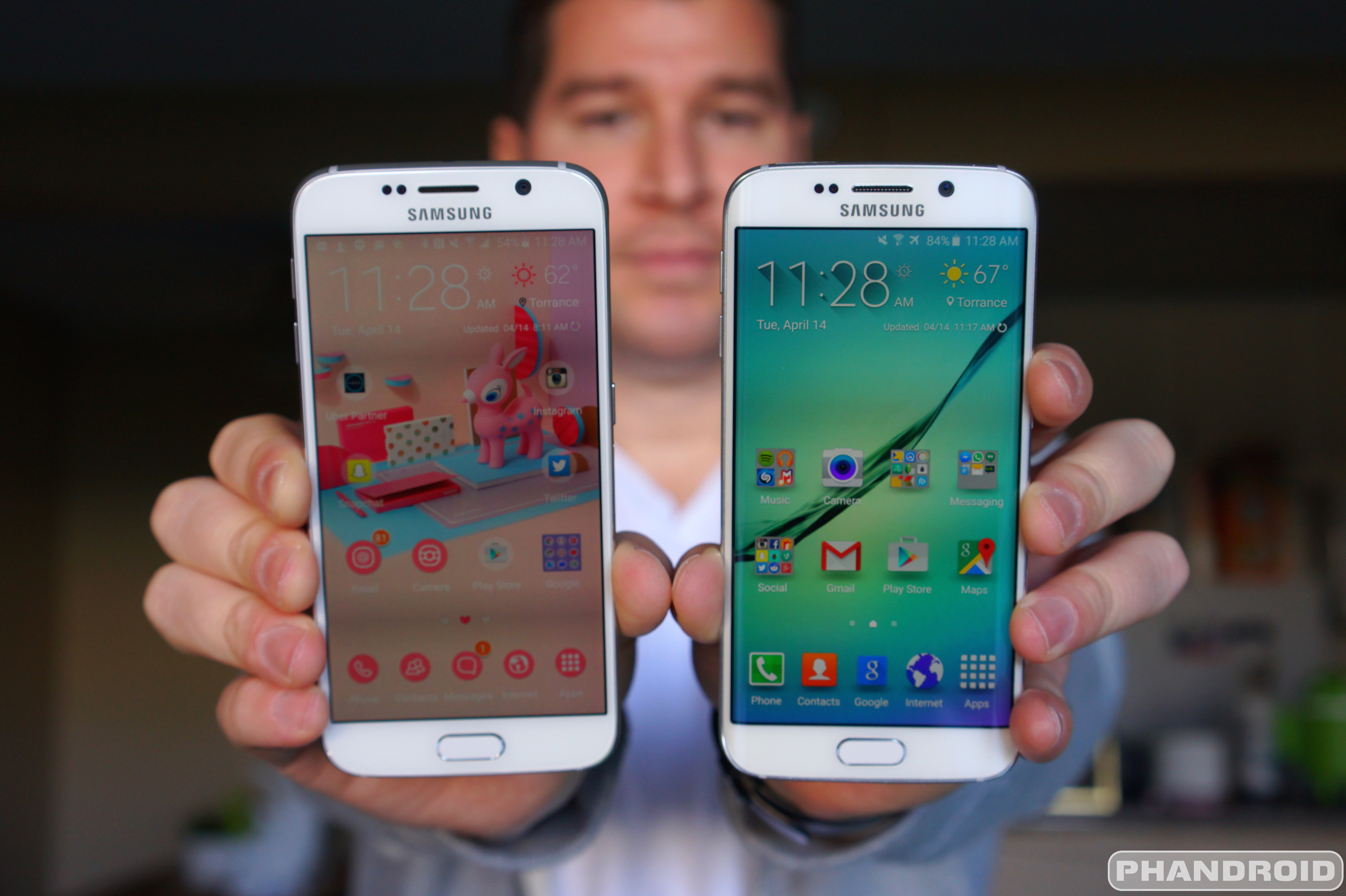
The Samsung Galaxy S6 Edge is one of the coolest looking Android devices in recent years. The curved edges make it look like a phone you might see in a sci-fi movie. However, the curved display is for more than just looks. Samsung has made use of the “Edge Screen” with some nifty features. Let’s taker a closer look at what you can do with the Edge Screen.
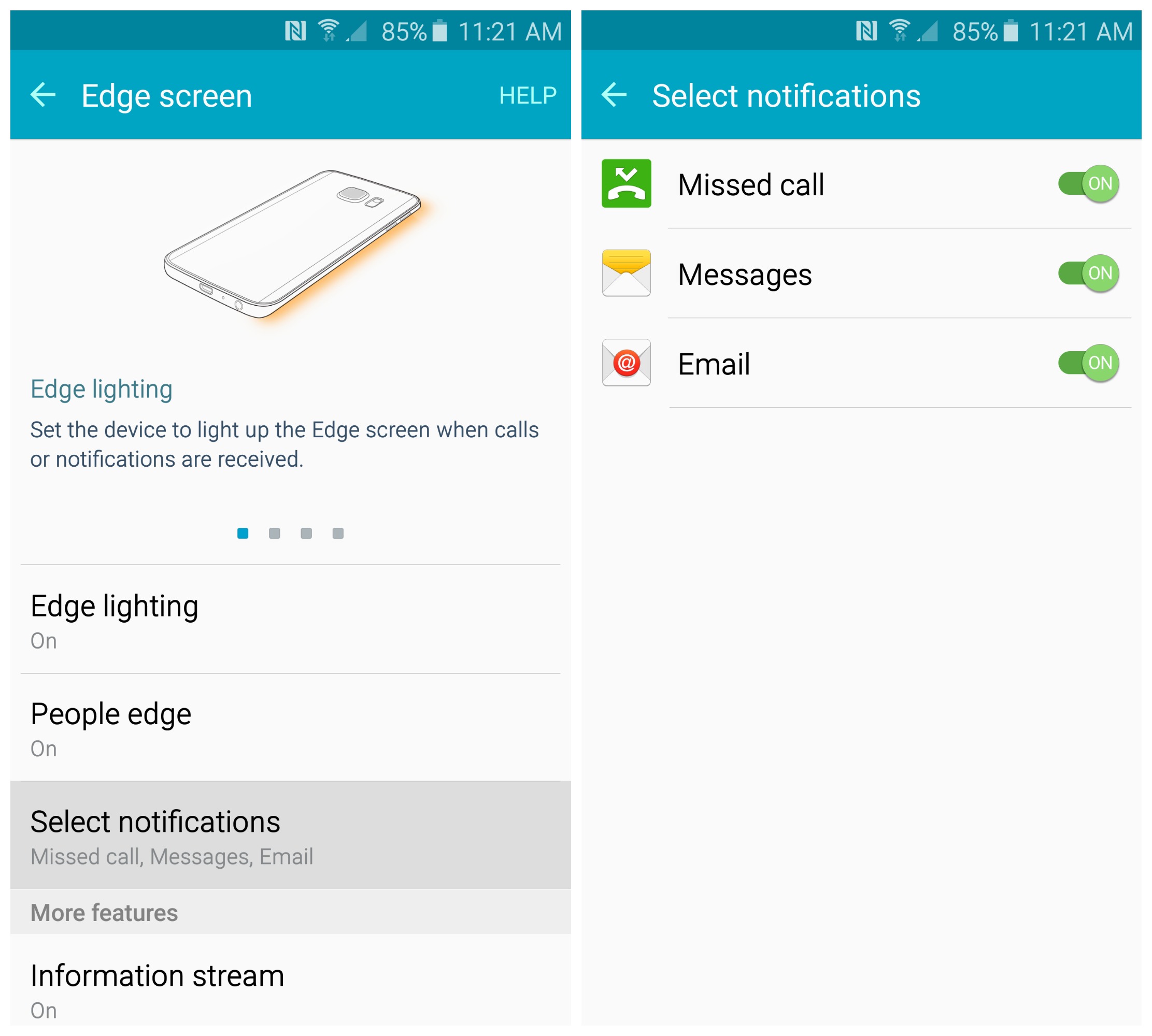
People Edge & Notifications
Since the Galaxy S6 Edge has curved displays you can actually see part of the display even when the phone is lying on its face. Samsung uses this area as a notification indicator. When certain notifications come in, such as a phone call, the Edge Screen lights up. If you’re getting a call and your phone is lying on its face you can even use the heart-rate sensor on the back to reject the call.
(click to enlarge)
When the phone is not lying on its face you can use a feature called “People Edge.” By swiping from the side of the Edge Screen you can bring up a list of five favorite contacts. You can use these as shortcuts to make calls and send SMS messages. If one of the five contacts has sent you some type of notification it will show a colored line that you can drag over to view.
Information Streams
Another thing you can do with the extra screen real estate on the edges is display information. Samsung calls this feature “Information streams,” and it allows you to display information from several different sources only on the edge. When the display is off you can slide your finger along the edge of the screen to bring up the stream, and then you can swipe through the sources.
(click to enlarge)
Some of the Information streams include Twitter, Facebook, and a few from Yahoo including news, sports, and finance. It’s a handy little feature for quickly getting some information without having to unlock the phone and dive into apps.
Night Clock
The Galaxy S6 Edge also has a Night Clock built in. When this feature is enabled it will show the current time and date only on the curved edge of the display. Since the clock is only on the edge display you can easily see it from your bed. The AMOLED display means the Night Clock doesn’t emit much light, and it can stay on all night with minimal battery drain.
What do you think about the Edge Screen features on the Galaxy S6 Edge? Are they useful or just gimmicky? Would you buy the Edge for these features, or do you just think it looks cool?
The Samsung Galaxy S6 Edge offers a unique new form factor, so it goes without saying we will see some interesting cases for the new flagship. Samsung will offer a few options out of the gate, including a new take on their S-View flip cover case as well as a lightweight plastic shell case.
The updated flip case features a translucent front providing a full-frontal view of the S6 display. Just as with previous Samsung flip covers, the phone can detect when the case is shut and displays a power-friendly clock and notification widget for at-a-glance updates. Lifting the cover will launch directly into your Galaxy S6 homescreen (provided you don’t have a screen lock enabled).
The case is curved to match the phone’s display and snaps snugly to the rear to offer 360 degrees of protection. We missed the presence of a magnetic clasp or other secure closure mechanism. The flip cover has a tendency to flap around freely otherwise.
Samsung’s other case option for the S6 Edge is more or less the rear of the folio case without its flipping front — that is, a standard plastic shell case that snaps on over the rear of the device. The minimalist cases offer basic protection while showcasing the design of the device.
Samsung’s snap-on rear cases are transparent while the S6 Edge folio case is available in a selection of colors to match those of the Galaxy S6. All should be available at launch.
We’ve already shown you the first 13 things you should do when getting your Samsung Galaxy S6, and all of that is equally applicable to the Samsung Galaxy S6 Edge. If you picked up the Edge and were wondering about its unique features, though, look no further. Here’s a full rundown of everything you should know about the Edge display and all the options, features and settings at your disposal.
1. Set the device to light up the Edge screen when calls or messages are received
One of the main features of the Samsung Galaxy S6 Edge’s Edge display is to have it illuminate a certain color based on who’s calling or messaging you. You’ll probably want to get this setup as soon as you receive your phone. Simply head to Settings > Edge screen > Edge lighting and make sure the option is set to “On,” and you’re good to go!
2. Pick 5 of your most important people to light up your Edge display
Of course, setting up the Edge display isn’t worth much without actually specifying which contacts you want lighting up your desk. Going to Settings > Edge screen > People edge will allow you to do just that.
Alternatively, on the home-screen you can slide out the People edge user interface by swiping the transparent tab to the middle of the display, and use the “+” icon to add any contact you want.
Now you can set up to 5 contacts that will illuminate your Edge display whenever they call (as well as other Edge features which we’ll get to in a moment). You can pick from one of 5 colors for those contacts:
Blue
Green
Yellow
Orange
Purple
Setting up your people isn’t enough, though — you’ll need to make sure your phone knows which phone numbers and email addresses to look for whenever they reach out.
3. Set default contact information for People edge
Heading to Settings > Edge Screen > People edge will allow you to specify default contact options for each of your five contacts.
You won’t be able to get notifications from them until you set these up, so make sure you don’t skip this step! Setting an email address will naturally enable Edge notifications for when they send you email, while setting the default phone number enables them for both phone calls and messages. Note that this information will need to be entered into each contact’s listing in your Contacts app before it shows up as a default option in People edge, so be sure to double check that if you aren’t seeing the options you’re looking for.
Once you’ve gotten it all ready to go you’ll notice your Edge display glow in the color corresponding to each contact whenever they call or message you. Be sure to set your phone face down on the surface to get the most out of this cool effect!
4. Send Quick Replies to your Edge contacts using the heart rate sensor
You only get the most out of the Edge display notifications when your phone is face down, so how do you act on incoming calls and messages without having to pick the phone up? Simple: the Heart Rate sensor on the rear does more than just read your pulse — it can be used to send quick replies!
To enable the feature and set your message, go to Settings > Edge Settings > Quick Reply and make sure the option is set to “On.” After that, use the text box at the bottom to set a custom message you want to send to a contact whenever you can’t accept their call.
When you have an incoming call from an Edge contact and can’t be bothered to pick the phone up, simply touch the heart rate sensor with your finger for 2 seconds and it’ll dismiss the call and send your preset text message to let them know you aren’t able to come to the phone.
5. Pull on your contacts’ colors to see and respond to missed calls and messages
Once you’ve gotten your People Edge contacts setup, you’ll see little tabs with their colors when you miss a call or message from them on your home-screen. Pulling on these tabs will not only show you information about the event — such as the contents of the message or the time the missed call was placed — but also allow you to respond to them. Envelope icon is for email, phone icon is to call, and the chat bubble icon is to send a text message. Easy peasy.
6. Get news, weather and Twitter updates on the Edge display
The Edge screen is informative in more ways than one, including being your very own news ticker. The Information Stream can be customized by going to Settings > Edge Settings > Information Stream, and it’s here where you can sync your Twitter account to get updates when new Tweets come in, sports scores and news, weather information and stock quotes.
You can also use the “Manage Feeds” option to download more types of feeds. They’ll automatically display when new information comes in, though you can also force the feed to come up by swiping your finger to the left or right across the Edge display.
Here are the different types of streams you can setup by default:
Briefing feed (standard device and app notifications)
Yahoo! News
Twitter trends
Yahoo! Finance
Yahoo! Sports
There are also a number of additional types of feeds you can download:
RSS Feeds for Edge
Whoscall – Caller ID & Block
BILD Newsticker
Be sure to explore each one and set them up to your own taste and liking!
7. Show a night clock on the Edge screen at night
One cool thing you might not know about the Edge display is that it’s possible to use it as a night clock! The time will display in low illumination at night, and thanks to the AMOLED display’s ability to turn on only the pixels it needs it sips next to nothing from the battery.
The only problem is you’ll need to enable this feature as it’s not enabled by default, though that’s no big task. Venture to Settings > Edge screen > Night clock and make sure the setting is set to “On.” From there, you can use the controls to specify a block of time when the night clock is enabled, up to a maximum of 12 hours.
8. Set a primary side for all your Edge display features to show on
We’re all different from head to toe, and that includes which hand we’re most comfortable using our phones with. If you don’t fancy your Edge features showing up on the righter-most edge, you can set it up on the left one. To do this, just go to Settings > Edge Screen > Edge Screen Position and select either Right Side or Left Side depending on what you fancy.
9. Have your Edge screen automatically shut off after a certain amount of time
As cool as the Edge display is, it can’t be on 24 hours per day and 7 days per week, lest you want your battery to run as dry as an overused well. While you can’t disable Edge screen timeout all together, you’ll be happy to know that you have some control over how long it takes for your display to shut off. Head to Settings > Edge Screen > Edge Screen Timeout and select from these preset options:
15 seconds
30 seconds
1 minute
2 minutes
5 minutes
15 minutes
We’d recommend only using the latter half of that list of options in the most extreme cases, but it’s yours to customize, so go nuts!
10. Get more help at the Samsung Galaxy S6 Edge forums
So where to from here? Our Samsung Galaxy S6 Edge section at AndroidForums.com is a great destination for help, tips and trick and other helpful discussion, such as where to find the best cases, screen protectors, wireless chargers and other accessories. Here are just a few of the threads filled to the brim with conversation right now:
The original Galaxy Note Edge was Samsung’s first attempt at a curved edge display. It could be used as a ruler, or to display a stopwatch, flashlight, sports scores, app shortcuts, and more. The idea was cool, but the execution was not there yet. With the Samsung Galaxy S6 Edge they’ve put the curved display on both sides and added some much nicer special features.
Instead of special apps for the edge display they’ve added shortcuts for your favorite contacts and cool color coded notifications. When you swipe in from the side you’ll see a vertical list of your favorite contacts, each with their own color. If you tap on a contact you’ll have the option to call them or send SMS.
When a notification arrives from one of these contacts you’ll see a subtle colored line on the edge of the display. Swipe on the line to pull out the notification and you’ll see a cool effect (pictured above). Here you can see the contents of the notification and take action to reply. The best feature comes when you set the Edge on its face. When a notification arrives the entire Edge screen will glow with the color of the contact.
You can also set up the Edge screen to show a “Information stream” of the time, weather, and certain notifications, and it can be used as a “Night clock.” Samsung has done a great job at turning what was originally seen as a gimmick into something people will actually use. Sometimes less is more. How do you like the Galaxy S6 Edge? Is it better than the Galaxy Note Edge?
We’ve zoomed from HTC and are now sitting at Samsung’s shindig in Barcelona this week. We’re expecting the company to unveil the Samsung Galaxy S6, and we’re likely to see an “Edge” variant with a display that curves on both sides.
Anything else Samsung is announcing will be quite the surprise as there hasn’t been anything else in the rumor mill other than the goliaths mentioned above. We’ll be bringing you all the info you need, but if you care to watch along you can do so using the YouTube embed above.
Verizon customers can now pre-order two of 2015’s hottest phone. First up are the dynamic duo of the Samsung Galaxy S6 and Samsung Galaxy S6 Edge, both of which can be had in all storage variants of 32GB, 64GB and 128GB. Here’s how the prices break down for those two:
32GB: .16 per month w/ Edge, 0 on-contract, 0 outright
64GB: .33 per month w/ Edge, 0 on-contract, 0 outright
128GB: .49 per month w/ Edge, 0 on-contract, 0 outright
That’s the cost of increased storage and innovation, folks (even if we know deep down inside additional storage alone doesn’t add hundreds of dollars to a phone’s price tag). The device will ship in time for Samsung’s global April 10th launch so you won’t have to worry about missing out on a weekend of fun with your new phone.
Also up for pre-sale today is the HTC One M9, which also launches April 10th. There’s only one model — 32GB — and it can be had for 24.99 per month w/ Edge, 0 on-contract, or 0 outright. Check that one out right here, and be sure to read our full HTC One M9 review to see if it’s worth picking up over its 2014 predecessor.
Owners of the Samsung Galaxy S6 and S6 Edge can grab themselves a Samsung Gear VR very soon. Samsung and Best Buy have announced that pre-sales for the virtual reality headset will commence tomorrow at Best Buy stores, and you can expect it to arrive May 8th.
Those are all the details we have right now so there’s no pricing information to be had. Beyond that, this should be the same Samsung Gear VR that was fit for the Samsung Galaxy Note 4 that we’ve come to know and love. It’ll give you a unique look into some VR-ready content such as the collection of goods found inside Samsung’s Milk VR app, as well as the new VR feature on YouTube. There’s also a decent selection of other apps scattered about that might interest you.
We’ll be sure keep our eyes on Best Buy’s website to see if we can’t get more details. In the meantime check out our Samsung Gear VR review to see what you can expect once you have one of your own.
By now you know the story: a new phone is released and in a made rush for views, countless YouTubers come out of the woodwork and put the phone through a variety of “stress tests.” This is all in an effort to determine build quality by subjecting the phone to a series of drop tests, or even its water resistance by submerging it in water.
Like most Android devices these days, the Samsung Galaxy S6 Edge doesn’t advertise any kind of IP rating. It’s actually one of the few areas the phone was left wanting. But just because you wont find an Ingress rating on the phone, doesn’t mean it wont survive a quick dip in a puddle, or even a drop in a toilet. Most phones feature some level of water resistance, so it’s to be expected that the Galaxy S6 Edge would last a few minutes submerged in a bowl of water. But over 20 minutes? That’s pretty crazy. Check out TechSmartt’s video below for proof.
As a bonus, we found another video — presumably from the same chick that threw the Galaxy S6 to the floor like a firecracker — this time crushing some walnuts using the Galaxy S6 Edge as a hammer, on top of the regular Galaxy S6. We should warn you. The 240p video is not for the squeamish.
Quick heads-up to Verizon faithful who have their eye on the Samsung Galaxy S6 and Samsung Galaxy S6 Edge — the company has announced that pre-sales will begin April 1st! Samsung didn’t make it a secret that the device would launch April 10th so Verizon figured they might as well announce their pre-sale event well ahead of schedule, too.
We still don’t know how much you’ll have to pay for the Samsung Galaxy S6 and S6 Edge, though recent contest rules have revealed a 0 retail price for the former. Note that those contest rules didn’t specify which storage model the price tag applied to, but we’ll have to assume it’s the base 32GB model for now.
Those are all the details Big Red had to share with us today, but we’ll certainly be digging for more in the days to come. For now, start making plans to siphon off a good portion of your income to pay for one of these once they’re finally available.
From one big announcement to the next — Samsung has officially unveiled the Samsung Galaxy S6 and the Samsung Galaxy S6 Edge, their 2015 flagship smartphones. The devices are just as we’d imagined them (or just as we saw them in countless leaks, anyway).
Samsung Galaxy S6 and Samsung Galaxy S6 Edge specs
They’re quite similar under the hood with the following quick list of specs:
14nm 64-bit Exynos 7 Octa chipset
3GB of LPDDR4 RAM
32GB, 64GB or 128GB UFS 2.0 storage options
16 megapixel rear camera with optical image stabilization, 5 megapixel front camera with real-time HDR
5.1-inch Quad-HD Super AMOLED display (577 ppi)
Dual-mode wireless charging with support for both WPC and PMA charging pads
10 minutes charging for 4 hours of use, 0% to 100% battery in half the time it takes an iPhone to charge
NFC, heart-rate sensor and improved fingerprint scanner
Depth: 6.8mm/7.0mm edge
Weight: 138g/132g edge
The difference will obviously come with the Edge display of the latter. Through software, it’ll enable unique experiences that only an Edge display can provide.
Both devices look stunning, to boot. They’re built with a metal chassis that’s 50% stronger than the metal used in competing smartphones, and is slathered in the latest Gorilla Glass on both the front and rear. It looks and feels like Samsung, but it’s hard to say their devices have ever looked quite this good.
TouchWiz on the Samsung Galaxy S6 and S6 Edge
One new feature is the ability to set up your “fave 5″ contacts with their own designated color, and the S6 Edge’s display will glow in that color whenever they call or send you a message. You can drag that contact’s color from the Edge of the display to act on that message or missed call.
If it’s laying face down on a surface? You’ll be able to see the glow of that contact’s color, and a touch of the heart-rate sensor on the back and send off a quick message to dismiss the call or message in case you can’t respond right away.
The two share everything else in terms of features. TouchWiz is still TouchWiz — no Nexus-like debloat job here — but they’ve refined it to be less confusing and cluttered. They’ve done away with cryptic icons for text-based interface options to make it clear what you’re able to do. They make good use of white space just as Google has asked folks to for Android 5.0 and higher.
Samsung Galaxy S6 and S6 Edge camera
Megapixels alone aren’t impressive, and Samsung knows that. That’s why they weren’t insecure about not being able to match HTC’s 20.7 megapixel sensor or some other ridiculous spec.
What does matter is picture quality, and thanks to both the front and rear camera’s f/1.9 aperture the device is able to capture 60% more light. It should make for much better low light performance for both still shots and video, as well as an overall more versatile sensor for everyday use. Real-time HDR — an industry first — is also present for both the front and rear sensor, as well.
The camera software hasn’t gotten a million new selfie modes and other nonsense, but it has been cleaned up to make it easier to get to the options you need. That seems to be the theme here — nothing crazy, just much improved.
Samsung Galaxy S6 and S6 Edge availability
Samsung has already announced a release date for this thing — April 10th, worldwide. You can expect all major carriers in whichever country you live to offer the thing so you won’t have to worry about jumping from your network of choice. There will be 32GB, 64GB and 128GB options available, though pricing for each model has yet to be confirmed.
In the video above you can see the boot times of the Galaxy S6 Edge, Galaxy S5, and iPhone 6 Plus. After pressing the power buttons at the same time they all boot up very quickly. The Galaxy S5 actually finishes just a split second faster than the Galaxy S6 Edge, followed by the iPhone just a second or two later. It’s a close race, but we’re a little surprised the Edge didn’t win.
This doesn’t mean the Edge is slow by any stretch of the imagination. In our previous speed tests the Galaxy S6 and Galaxy S6 Edge outperformed the Galaxy S5. The power button the Edge could have been pressed just slightly later. At the end of the day it’s just boot time, and the Galaxy S6 Edge has more speed where it counts. How do you feel about this boot time speed test?
Samsung held an event in India where the Korean manufacturer officially confirmed pricing and availability of the Samsung Galaxy S6 and Samsung Galaxy S6 Edge in the country. According to SamMobile who attended the event, the Galaxy S6 will be available in all storage configurations at the following prices:
Samsung Galaxy S6 pricing for India
32GB: Rs. 49,900
64GB: Rs. 55,900
128GB: Rs. 61,900
Samsung Galaxy S6 Edge pricing for India
32GB: Rs. 58,900
64GB: Rs. 64,900
128GB: Rs. 70,900
Along with being manufactured inside of India, both devices will offer 4G LTE compatibility with the country’s wireless networks. Pre-orders are available starting today, with Samsung confirming that India will officially join 20 other countries for the same April 10th launch date.
VSCO Cam: Download The Minimalist Collection, which includes 10 VSCO Cam® presets
Workout Trainer: Six months of Workout Trainer Pro+
Not all of it will be of interest to everyone who buys a Samsung Galaxy S6, but there’s enough variety here that you should find something worth taking advantage of. All of it can be had through Samsung’s Galaxy Gifts application that can be downloaded from the Samsung Apps Store. Be sure to check it out as soon as you can.
Any tech-obsessed being with an inkling of a pulse knows about the Samsung Galaxy S6 and Samsung Galaxy S6 Edge by now. They look awesome, they’re built with glass and metal, they’re very powerful and have cutting edge features.
One of those cutting edge features is wireless charging. It’s not new in its own, per se, but Samsung is the first to be using a new dual-mode charging technology that lets you use two of the world’s top wireless charging standards simultaneously (that being WPC’s Qi and the technology made by the now-joint AW4P and PMA). That means there’s no need to worry about whether a wireless charging pad you already own or one you see at a public venue is compatible with your phone — just drop it on and you’re likely good to go!
We tested the device out on Samsung’s Qi-based charging pad at Mobile World Congress, and it works quite well. It charges at a rate of 2 amps so it won’t take forever to get some juice, and the surface area is large enough for the phone to recognize the charging current without it having to be perfectly positioned on the charging pad.
It’s our hope that Samsung’s use of the new technology inside the Samsung Galaxy S6 and S6 Edge will inspire more companies to adopt it in their upcoming smartphones. Let’s do away with the need for special cases and back covers to equip phones with wireless charging as standard, because this all-encompassing technology wipes away the need to worry about all the pitfalls that once accompanied it. Check it out in the videos you see above.
We can’t for the life of us figure out how Samsung came to the decision to hack up TouchWiz for US versions of the device, giving carriers exclusive fundamental options others didn’t get. For instance, only the AT&T Samsung Galaxy S6 and S6 Edge models have an option to change the touch key (capacitive nav buttons) light duration. Yes, that very same option you’ve had on Galaxy devices for years now.
Well, the clever minds on XDA found a workaround, one that didn’t involve root, but involved enabling USB debugging and executing a few commands via ADB just to change it on non-AT&T S6 models. Not exactly convenient, or probably even worth the hassle. That is, unless these lights were bothering you when using your device in the dark (they can be a little bright).
Thankfully, some beautiful soul on Google Play has created an app just for this purpose. Simply put, it allows you to change the duration of those backlit back and recents buttons on the Galaxy S6 (all versions) — even turn them off completely if you’d like. Not sure why Samsung didn’t enable this “feature” on all models, but we’re glad someone out there was able to step up. Link provided below.