Affichage des articles dont le libellé est Developer. Afficher tous les articles

lundi 6 juillet 2015

Upcoming API will allow any developer to show Google Now cards


google now watch


Google’s already shown hints of expanded Google Now functionality through the use of third-party apps, but not everyone was invited to the party. A select group of developers were let in on the fun this past January, but what about the little guys who might not be recognized as a “top developer” and couldn’t build this functionality into their apps?


According to a Google rep speaking at South by Southwest (SXSW) this morning, that will soon change. Aparna Chennapragada, Google’s director of product manager for Google Now, told of an upcoming open API that developers would be able to tap into in order to provide Google Now cards where and if they make sense.


Unfortunately that’s the extent of any known details. There’s no word on how soon this will be available or what sort of freedom developers would have in supporting Google Now cards. We did get a morsel of information about a forthcoming Google Now card that might show queue times for your favorite attractions at a theme park, though, so there’s that.


If Google Now wasn’t already one of the most informative, useful and fun tools baked into Android, then it’s sure to become all of that and more once developers can make their own cards.


[via NextWeb]


Facebook’s F8 Developer Conference is happening today at 1PM Eastern, here’s where you can watch live


Facebook Mark Zuckerberg


Facebook’s developer conference is going on today folks. I know, grumble grumble, Facebook hate. But as much as you might not like the social network, they’re still pretty big and have made significant strides in the past couple of years to move beyond the likes and shares to become a tech juggernaut. We saw their first big movement with the purchase of Oculus Rift, one of the biggest players in virtual reality who were responsible for getting the world excited about the technology again.


Want to follow along? Facebook’s streaming all their announcements live right here starting at 1PM Eastern. If you can’t quite cut a block of time out of your schedule to watch live we’ll certainly be bringing you any pertinent news to spawn from the event. For everyone else, grab the popcorn!


11 Android M Wallpapers from the Developer Preview


The Google IO 2015 Keynote came and went and we’ve shared with you all the big news. Now that the Android M developer preview is out in the wild, we’ve got the Android faithful flashing Android M in the forums and digging it apart for all the nitty gritty goodies.


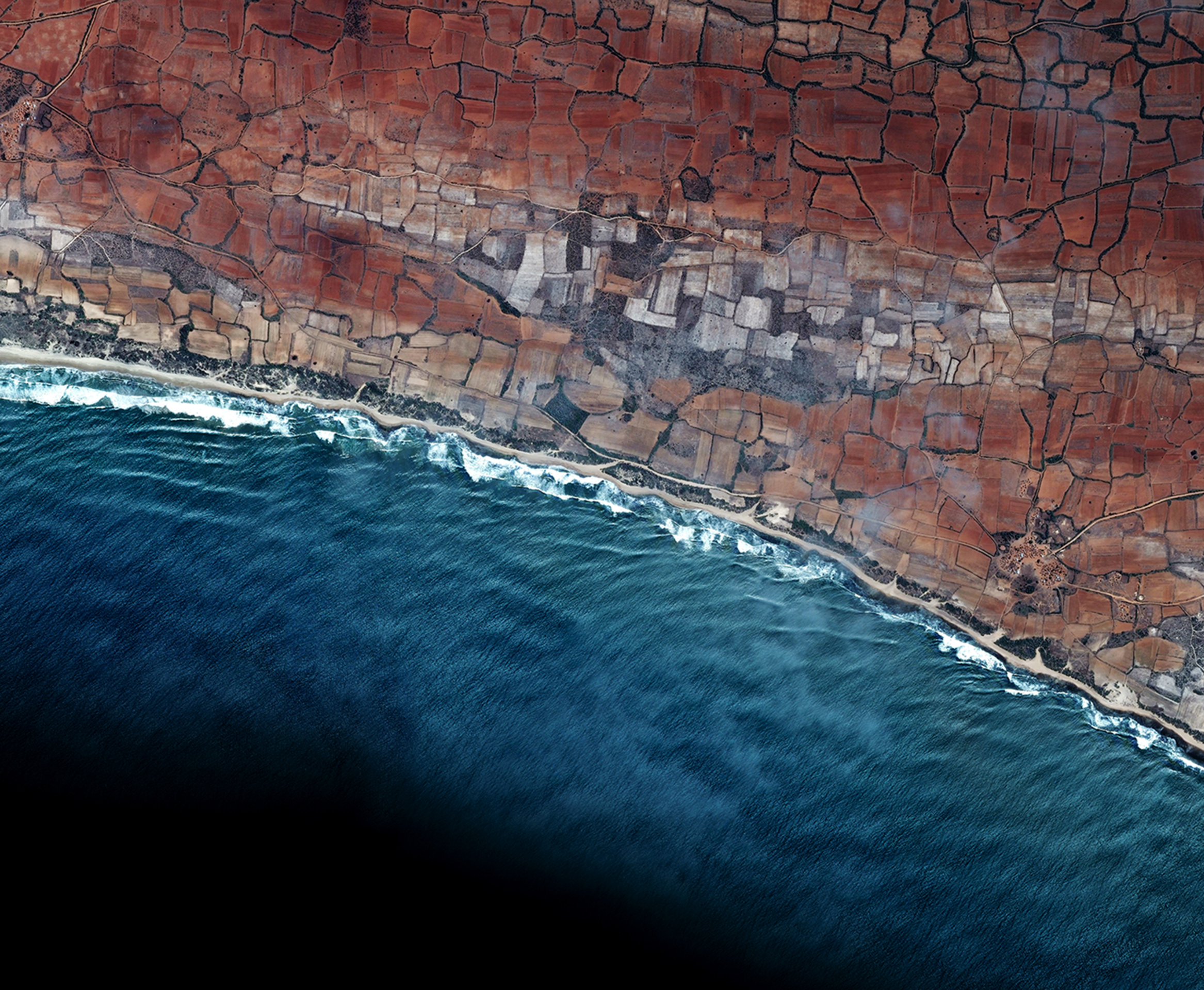
Among them, without fail, is a collection of the default wallpapers. Unfortunately, (at this point) there is only 1 new wallpaper found in Android M:


max frame and edited


The lone new wallpaper appears to be a picture of earth taken from space – just another reason to think that Android M won’t be called Marshmallow but instead will be called Android Milky Way.


Here are the other 10 default wallpapers found on the developer preview of Android M (but that also appeared in Android L):


wp_arc_001-phandroid wp_arc_003-phandroid  wp_geo_1243-phandroid wp_geo_1557-phandroid wp_geo_2102-phandroid wp_geo_2167-phandroid wp_geo_2170-phandroid wp_geo_2278-phandroid wp_paper_001-phandroid


wp_arc_004-phandroid


Stay glued to Phandroid for more exclusive coverage of Google IO 2015!


[Thanks Chris!]


How to customize the Quick Settings Panel on the Android M Developer Preview [VIDEO]


android m quick settings customization


Yesterday it was revealed that you can now rearrange the quick settings toggles in the Android M developer preview. It’s not a groundbreaking feature, but people have different tastes and needs so it’s certainly something we’ll all come to appreciate.


If you happen to have the developer preview loaded on one of your Nexus devices and want to try this out, here’s a quick and easy guide. You can follow the video above, or take heed to the following steps:


  1. Make sure you enable the Developer Options menu. This can be done by going to Settings > About Phone. From there, scroll to the build number and tap it really fast until the phone tells you you’re a developer.

  2. Head back to Settings > Developer Options and find the Show SystemUI Tuner option. Make sure the toggle is set to on.

  3. Now go to Settings > System UI Tuner, and you’ll see an option called Quick Settings. Select it.

  4. Here you can remove and add tiles as you see fit. To remove a tile, perform a long-press on it and drag it down to the bottom. To add, press the “Add Tile” button at the bottom.


And once you’ve gotten everything the way you want it, head to notifications to see your Quick Settings panel exactly the way you want it. Unfortunately the Android M developer preview is still a bit buggy, so trying to rearrange tiles in the exact order you want doesn’t seem to work just yet, but we’re hopeful all of that will be squared away by the time this thing is ready for production.


How to enable the Light or Dark Theme on the Android M Developer Preview [VIDEO]


android m theme options


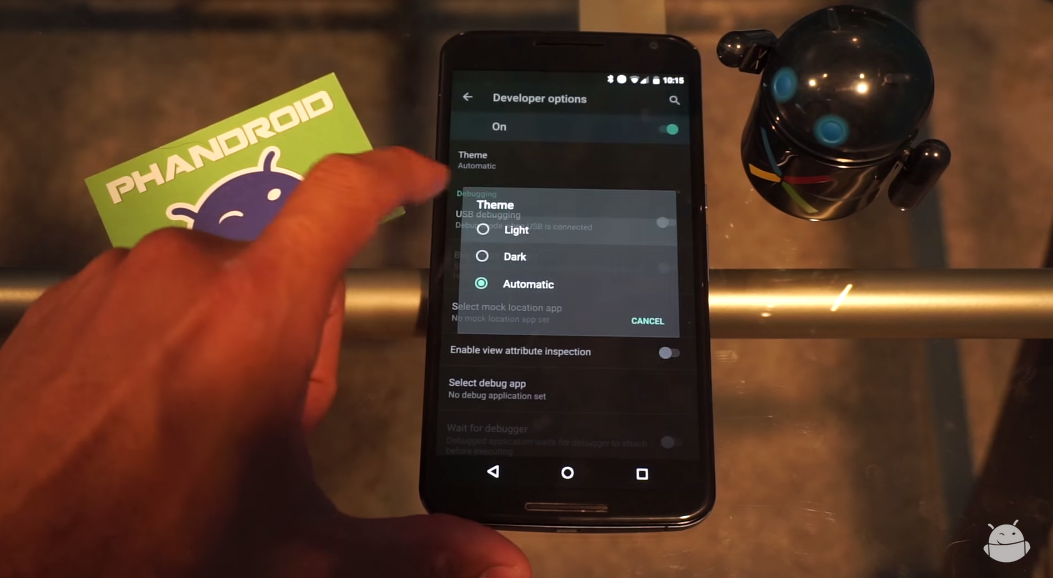
One of the cool things that popped up in the Android M developer preview was the ability to switch between a light or dark theme. It’s nothing drastic — system UI elements and menus become either light text on dark background or dark text on light background — but it’s a nice little added bit of customization for those who can’t stand one or the other.


So how do you enable it? It’s very simple, and a quick 2 minute viewing of the video above shows you exactly how. Can’t watch it? Here’s a quick rundown of what you need to do to get going:


  1. Make sure you enable the Developer Options menu. This can be done by going to Settings > About Phone. From there, scroll to the build number and tap it really fast until the phone tells you you’re a developer.

  2. Head back to Settings > Developer Options and find the Theme option.

  3. In the resulting dialog box, select between Light, Dark or Automatic.


And there you have it. We’re still a bit unsure on what the “Automatic” setting does. It’s possible this option will choose between Light or Dark depending on factors such as time of day or a reading from the ambient light sensor. We’re still testing it out, and we’ll be sure to let you know if we find anything.


Of course, it’s entirely possible that this setting does not yet do anything as this is a developer preview and things aren’t guaranteed to work 100% the way they’re meant to. In any case, give it a go if you have the Android M developer preview on your Nexus device!


How to enable or disable App Permissions on the Android M Developer Preview [VIDEO]


android m app permissions


Google was met with a round of applause during their keynote yesterday when they announced Android M would give users more control over the device permissions apps can request. The new system allows you to grant or revoke access on a granular basis, so you choose whether to grant an app access to the microphone, or your camera, or your location or contacts.


Those who have flashed the Android M developer preview will be able to start controlling permissions right away, even in apps that haven’t been designed for it. Here’s how you can go about doing that.


  1. To start, head to Settings > App and find an app which you want to work with. Select it.

  2. Tap App Permissions on the App Info screen.

  3. You will see a list of permissions the app requests, and whether those permissions are toggled on or off. Tap the toggle to customize the setting.


Note that you may get a warning letting you know that some apps which don’t natively implement the new permissions might break as a result of disabling or enabling. If that happens, just use the steps above to go back and turn the permission back on. The only thing left to do is to rejoice now that you have the final say over which device functions an app is allowed to use.


Android M has a dark theme hidden in the developer options


Android M dark theme


It’s not full-on theme support, but it’s the next best thing and one of the most requested features Android die-hards have been asking for since Android started moving towards a lighter color palette. As discovered by Derek Ross, it turns out Android M will finally bring a new dark theme when it launches later this year.


Right now, it’s still extremely early and hidden away inside Android’s hidden developer settings. What’s more is it doesn’t really do much but apply a Material dark theme to the settings app, but we imagine developers can implement something similar in their own apps once M rolls out later this year. It’s not pure black, but at least it’s something.


[Images via Reddit]


Sony releases Android M Developer Preview for select Xperia devices, here’s the full list


Sony Xperia Android M developer preview


While nowhere near final software, the Android M Developer Preview is a great way for devs to test drive the next version of Android before it’s officially released at the end of the year. That’s why Google introduced the program back when Android L (Lollipop) was first unveiled during last year’s Google I/O.


Normally, we don’t expect to see a developer preview running on much, not outside of officially supported Nexus devices or 3rd party custom ROMs. Today, the folks at Sony Mobile are now giving developers a shot at trying it on their Xperia devices as part of Sony’s Open Device program.


Willing developers can now create a test image for themselves and flash it onto their Xperia devices providing they have a knowledge in these things. There’s a fair amount of officially supported devices and Sony Mobile was even nice enough to provide a quick guide for those that needed a refresher. For those curious, here’s the full running list:


  • Xperia Z3

  • Xperia Z3 Compact

  • Xperia Z3 Tablet Compact

  • Xperia Z2

  • Xperia Z2 Tablet

  • Xperia Z1

  • Xperia Z1 Compact

  • Xperia Z Ultra

  • Xperia E3

  • Xperia M2

  • Xperia T2 Ultra

  • Xperia T3


We should note, Sony also cautioned users that the AOSP software isn’t certified or intended for daily use (modem and camera aren’t working), so you probably shouldn’t go flashing this on your daily driver. If that hasn’t scared you away yet, feel free to hit up the source link for more.


[Sony]


Google Photos developer apologizes for incorrectly identifying black couple as ‘gorillas’


Picard-Facepalm


In what can only be described as one hell of an awkward experience, Google Photos could be accidentally racist. Well, as much as a computer algorithm can be. In what appears to be a pretty big oversight by its developers, Google Photos — which recently added a new feature that can identify faces, objects, or even animals from stored photos — seems to have incorrectly tagged a black couple as gorillas. Yikes.


The person who made the discovery was quickly contacted by a Google developer on Twitter who sincerely apologized for the mix up, removing the “gorillas” tag from the service entirely until they can sort things out. As far as avoiding this mess in the future, Google developer Yonatan Zunger had this to say:


“We’re also working on longer-term fixes around both linguistics (words to be careful about in photos of people [lang-dependent] and image recognition itself. (e.g., better recognition of dark-skinned faces). Lots of work being done, and lots still to be done. But we’re very much on it.”


This isn’t the first time computers have been accused of semi “racist” mistakes. Not too long ago HP came under fire after their computer webcams couldn’t identify black people, and there was even a camera that asked if Asians were blinking.


It’s clear Google’s recognition software still needs some fine tuning. It’s only in the situation above that things get weird. Nobody really gets offended when Google Photos incorrectly tags your cat as a dog. Well, not unless you’re a cat.


[Twitter | via Ars Technica]


Google Play developer pages are now live on desktop and mobile, check ours out!


neverstill google play page


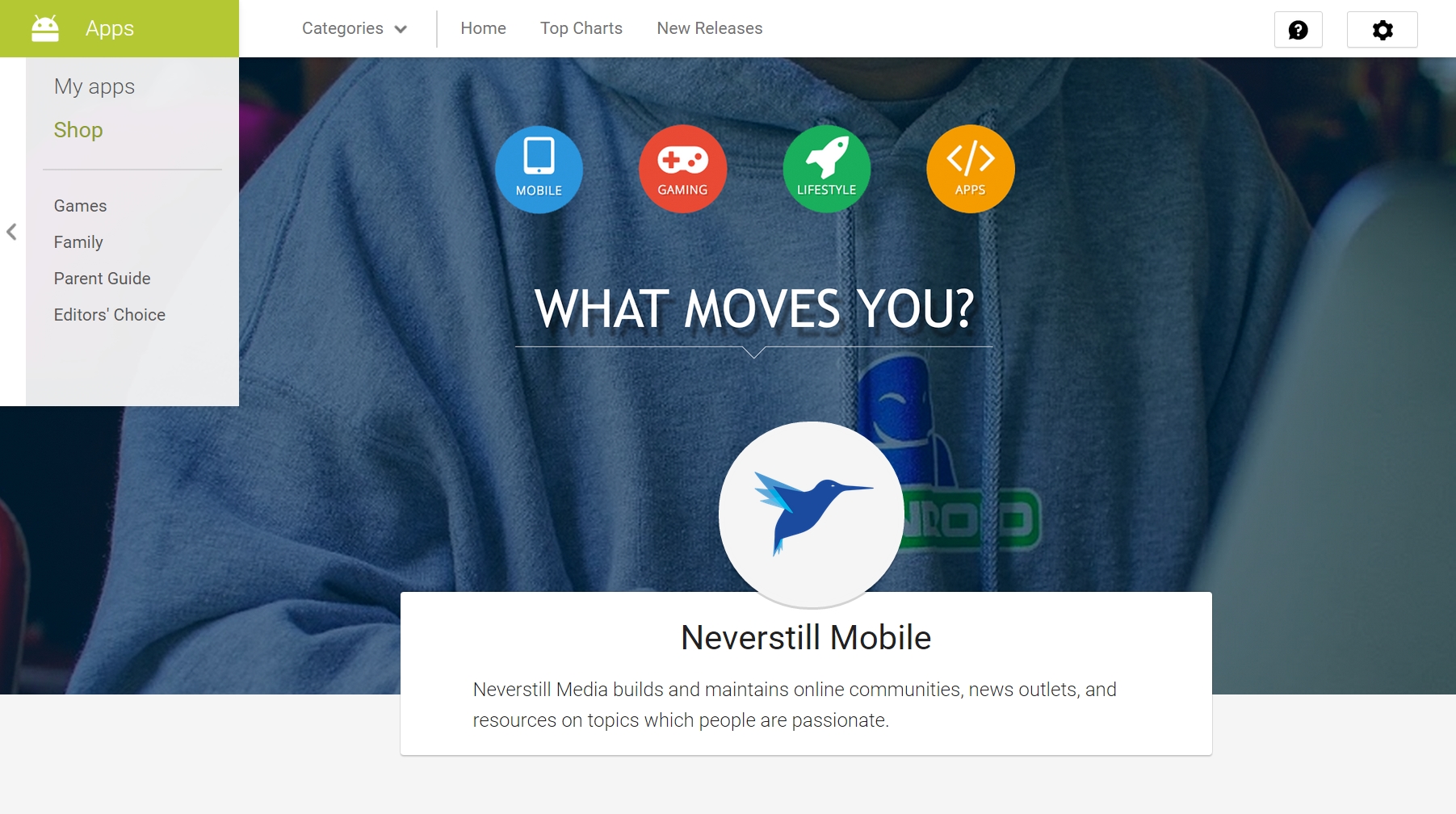
Google announced at this past Google IO that developers would be able to make neat landing pages to show off their apps and brands. Those pages now seem to be live for developers to start customizing and giving their wares a much prettier home than a boring list of apps.


For developers, getting started is almost as easy as Tweeting. You’ll start by heading to the Developer Pages section in Google Play’s developer console settings. From here, you’ll need a few things:


  • Promotional text: Add up to 140 characters that describe your brand. You can add translations of your promotional text by clicking Add translations near the top of the screen. Once you’ve added translations, you can click Manage translations to add other translations.

  • Developer icon: 512 x 512, 32-bit PNG

  • Header image: 4096 x 2304, JPG or 24-bit PNG (no alpha)


You also have the option of setting a primary app to highlight, as well as a URL to link to your brand’s website. You can see ours in action by heading right here, if you’re curious. (Psst: you should definitely download that Phandroid app.) Other developers will want to get their pages in order as soon as possible to maximize visibility in Google Play.


Google Play Developer policies updated


Google Play Store


Google is sending out a notice to Google Play Developers about some changes they’ve made to their policies. The newly updated Developer Program Policy page adds revisions like a new sensitive events policy for natural disasters and/or global conflicts. Everything else is more or less changes to the language used for current policies. It’s pretty cut and dry, but here’s the full list of changes outlined in their email:


  • A new sensitive events policy addresses sensitivities around tragic events, such as natural disasters or global conflicts.

  • To protect users from harm, we’ve introduced new deceptive behavior language to more clearly define expectations for app functionality.

  • We’ve clarified language in the payment policy section for consistency and added links to a supplemental help center article for additional developer support.

  • To ensure a secure and consistent customer support experience for our users, we’ve introduced a provision which governs the transfer of in-app virtual currencies purchased in an app.

  • We’ve specified that apps should not harm, interfere with, or improperly access Application Programming Interfaces (APIs).


Developers who publish an application or game after today will be subject to the new changes, while those who’ve already submitted content to Google Play will have 30 calendar days to comply or risk their app being removed from the Play Store. Google is also asking developers to provide feedback on their terms and polices in a brief survey here.


[Google Play Developer Program Policies]