Affichage des articles dont le libellé est you’re. Afficher tous les articles

lundi 6 juillet 2015

PSA: North American Nexus 6s have a tad bit of Verizon bloatware after Android 5.1 (even if you’re with a different carrier)


Nexus_6_Midnight_Blue


You might have heard that the Nexus 6 (in America, at least) is now starting to receive Android 5.1 Lollipop. You can even grab the OTA file right now and begin flashing it if it hasn’t already hit your phone. Most users will immediately notice a nice performance boost thanks to a large heap of bugs squashed by Google and co.


But those who dig even deeper might find something a bit unsettling: there’s a Verizon Backup app pre-installed. It can’t be uninstalled. It can’t even be disabled. And it’s there no matter which carrier you bought your Nexus through or who you have it activated with. It wasn’t on any of the firmware versions prior to Android 5.1, which makes sense considering Verizon’s Nexus 6 has just gone up for sale and it comes with Android 5.1 out of the box.


nexus 6 verizon backup screenshot


“The horror,” you might exclaim. “Big Red is evil,” you’ll shout. Before you grab those pitchforks and torches, though, there are a few things to note:


  • As Google mentioned when the Nexus 6 was announced, every single North American unit is the exact same hardware and share the exact same firmware in order to allow people to use it on whichever carrier they wish.

  • Verizon is not the only carrier to have one of these system apps included with the Nexus 6’s firmware. Sprint has an app called SprintDM that facilitates device provisions and activations for anyone who wants to use the Nexus 6 on their network, and it’s been there since the launch of the Nexus 6.

  • The Verizon Backup app can’t be disabled or uninstalled, sure, but it’s a mere 32KB in size, doesn’t exist in your app drawer and — as far as we know — does nothing to adversely affect your user experience. You’ll find that you can now add a “Verizon Backup” account under the standard accounts menu in settings, but it’s just as easy to ignore as anything else in that menu.


So we know this behavior isn’t new, but what we’re still trying to figure out is why Verizon’s Backup has to be included as a system app in the first place. SprintDM’s presence makes sense because it’s a necessary component to get the Nexus 6 automatically activated on the company’s network (which, in turn, is necessary since it’s possible to use any Nexus 6 on any network).


The only plausible explanation that comes to mind is that Verizon Backup requires some sort of low-level system access to work properly for those who need to use it, and Verizon doesn’t want to chance someone either not having the proper background service or accidentally uninstalling/disabling the app.


That’s just a guess, though — we won’t truly know until we can hear it from the horse’s mouth. We’ve reached out to some of our contacts to see if we can get an answer to all this, but in the meantime be sure not to freak out if you notice the app taunting you in your list of installed apps. It’s harmless, and you’ll probably forget it’s even there by the time the day is over.

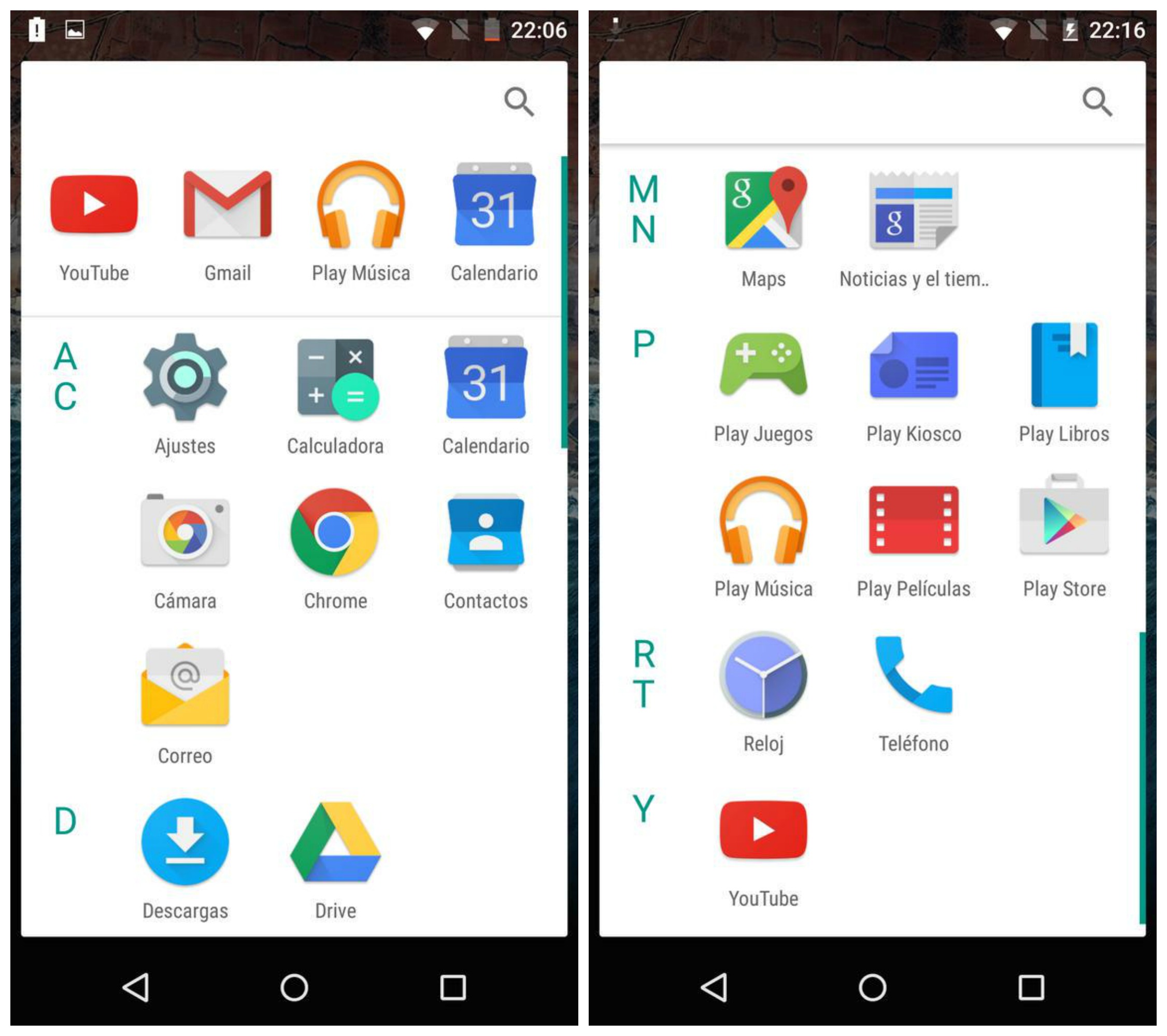


Android M’s new launcher has an app drawer you’re probably going to hate [VIDEO]


Android M app drawer


With the exception of HTC’s Sense UI, it’s been awhile since we last saw a vertical scrolling app drawer on Android. Ever since Ice Cream Sandwich ditched Gingerbread’s vertical scrolling app drawer for a nice horizontally scrolling one, it just felt… well, right. While Froyo’s cubed shaped app drawer will always hold a special place in our hearts, we’ve loved the way vertical scrolling felt.


Last year’s Lollipop update added a little spin on the classic home screen with an all new Google Now launcher featuring easier access to Google Now and white cards in the app drawer. It’s crazy to think that Google is already changing things up again this year and it’s pretty drastic.


The Android M Developer Preview features a new throw-back launcher with an app drawer that scrolls vertically, something we haven’t seen since Android’s early days. Upon opening, a row of recently used apps can be found along the top (something we’ve recently seen in 3rd party launchers) along with apps that are now sectioned off by the alphabet.


You’ll also notice a new app opening animation that kind of zooms out from the app icon itself (although backing out of an app still uses the old Lollipop animation). Oh, and if uninstalling apps from the app drawer wasn’t easy enough, you can now do this by dragging icons straight from the launcher itself. You can see what we’re talking about in the video below.


We have to say, it’s a strange move but of course this is a developer preview and anything can change in time for M’s official release later this year. In either case the vertically scrolling app drawer wont mean much to many of you already invested in one of Android’s many 3rd party launchers.


Thanks, Hernan!


This helpful video shows you how to waterproof a Samsung Galaxy S6… if you’re clinically insane


waterproof samsung galaxy s6


One of the biggest knocks on the Samsung Galaxy S6 and S6 Edge was that Samsung sacrificed function for form. One of those sacrifices was a waterproof design — turns out beauty comes at the cost of vulnerability.


But did you know it’s possible to make the Samsung Galaxy S6 waterproof? The folks at PeripateticPandas proves it in their instructional step-by-step guide. Here’s a quick summary of the steps involved:


  • Buy a bottle of clear silicone

  • Place your Samsung Galaxy S6 in a Petri dish

  • Watch the video and laugh, because none of this is practical


Bottom line: it isn’t possible unless you’re insane and don’t mind your device to be completely covered in hardened silicone for all its life. If nothing else, it’s a quick 3 minute laugh that will make you appreciate the sort of humor it takes to make light of an otherwise disappointing situation. Check it out in the video above.