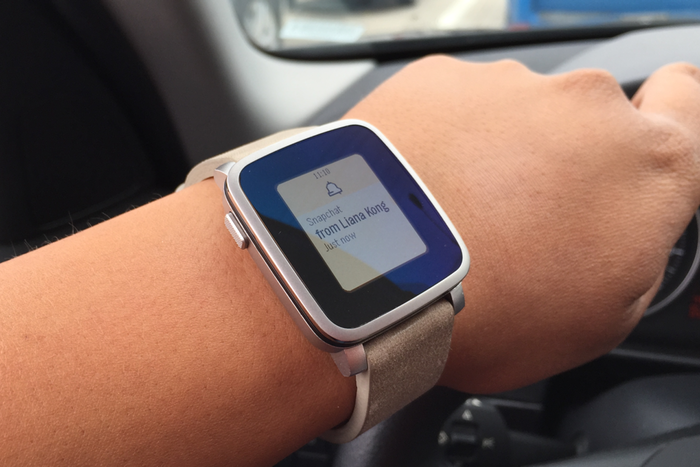
Pebble has announced that they have started mass production on their latest smart watch, the Pebble Time. We’d love to say it’s fully great news as it means they’re on track to start shipping soon. The catch? They actually aren’t on time with their original deadline — they admitted this was a week later than they’d like to start mass producing, and that this has caused shipment estimates to move back by the same amount of time.
That said, a week isn’t a terrible delay compared to other Kickstarter projects (which we’ve seen could take another extra few months or even up to a year for the project creators to fulfill).
With today’s news comes a deeper look at the new color-filled interface, as well as a point-by-point list of features that you can expect on day one, and what’s coming soon. The video above will give you a look at how notifications, the timeline system and alerts work on Pebble Time, while the one you see below shows you how it handles weather.
Here’s that list of what’ll be ready as soon as you take out out of the box:
- New timeline Interface. Review Past, Present, and Future events you care about right from your watch. Initial support includes timeline pins for calendars, sports scores, and weather.
- Expanded app storage. Goodbye, 8-app limit! Pebble Time will store as many apps and faces as possible on the watch itself. When needed, an app or face not currently stored will automatically install from your Android or iOS device.
- New Sports app. Keep tabs on the latest MLB, NBA, NFL, NHL, NCAAF, and NCAAM scores with an official Sports app. Find which teams you want to follow to get start times, score updates, and more sent directly to your timeline.
- Redesigned system apps in color. Alarms, Calendar, Music, Notifications, Sports, and Settings are all redesigned for Pebble Time’s new color e-paper display.
- Voice replies to Android notifications. Dictate short replies for app notifications that allow direct text replies.
…and what’s confirmed to be on tap for future updates:
- Voice response to Gmail notifications on iOS.
- Voice notes app.
- Stocks app.
- Weather watchface.
- Album art view for the Music app.
Not bad at all. Shipping will begin in the second half of this month, with many of the earliest backers starting to receive their orders in the last week of May or first week of June. Get excited!
[via KickStarter]


 This is usually how the carrier branded or locked Samsung Galaxy S5, performs a software update. This method is Firmware Update through over the air or called as OTA update, which usually a notification message will directly sent to you from your network provider or Samsung and notifies you that there is a new update available for download. If you did not received any notification messages you can manually check fro the update instead. Doing this you may only tap on your Galaxy S5 SM-G900V Settings>>About Device, tap Software Update.