Affichage des articles dont le libellé est Mode. Afficher tous les articles

lundi 6 juillet 2015

Pro Mode: Galaxy S6 gives full manual controls for camera enthusiasts [VIDEO]


Samsung Galaxy S6 Selfie


Over the years Samsung has put a lot of work into the camera app found on their Android phones. Maybe a little too much work, considering how overwhelming the various features and filters and photo modes started to get with the Samsung Galaxy S5 and Note 4. With the Samsung Galaxy S6, the Korean phone manufacturer felt a different approach was in order: a more simple, streamlined camera experience.


But simple and streamlined do not mean lacking in capability, and here Samsung has done us the favor of including a Pro mode for those that wish to have more manual control over shooting parameters. Tapping “Mode” within the camera and switching from Auto to Pro enables users to adjust things like white balance, ISO, metering, and even focus.


Long-pressing an area of the screen will focus on that point, just like in Auto mode, but in Pro mode you can alternatively choose to focus on one area of the photo while base the exposure off a separate area. This is a feature we have seen in several third-party camera apps, and one we are glad to have in the Galaxy S6’s default camera.


If you checked out our comparison shots between the Galaxy S6 and iPhone 6, you probably noticed the drastic difference in white balance between the two. In Auto mode the GS6 had the tendency to lend a yellow hue to the scene. Manual white balance adjustment means we can dial that yellow out of the photo, and in hindsight would probably have us thinking differently about the results of our comparison.


Of course, the Galaxy S6’s new camera retains most of the features we have come to expect. Real-time filters, slow motion video, panorama, and more are all there at your disposal. The camera is also super fast to load and features killer optical image stabilization. Pro mode is just one more addition to your virtual photographer’s bag that could mean the difference between a typical smartphone photo and a true work of art.


Spotify Running Mode detects the rhythm of your feet and picks music to match


The music industry is experiencing a huge shift with physical and online music purchases declining and streaming music services on the rise. Among the most popular is Spotify who today in New York City made some interesting announcements to bring their customers entirely new experiences.


The most exciting new feature is for runners: Spotify now has a mode that will detect your running pace, the rhythm of your feet, and select songs that perfectly match the way you run. This is an outrageously cool idea that I know exercise enthusiasts will be dying to try out.


spotify-detect-tempo


spotify-run-mode


Spotify also announced partnerships with Nike and RunKeeper to bring this feature to the Nike Plus and RunKeeper apps later this year. We can only assume you’ll have these features on your Android Phones in due time.


spotify-nike-runkeeper


Running Mode is the most exciting feature Spotify announced but it’s not the only thing. The new Spotify aims to deliver 3 key elements:


  • The perfect soundtrack for any part of your day

  • New types of content

  • Better experiences with innovative solutions


The “soundtrack for your life” could also prove promising. They’ve created an auto-create playlist feature that takes into consideration everything about you to continually decide what song it thinks you’ll want to hear next.


Depending on who you are it selects music for when you wake up, when you go running, when you get to work, when you’re commuting, and so on and so forth. It constantly learns who you are, where you go and when, what you like during those times, and creates the soundtrack for your life in real-time.


This isn’t a particularly new idea, but alternatives offered by the likes of Google Play Music, iTunes Radio, and Pandora don’t choose music particularly well. Spotify’s “soundtrack for your life” could end up being pretty darn awesome. We’ll have to wait, try it, and see.


Enhancing the experience with new types of content is an interesting concept as well, but again, nothing particularly new here. Spotify is adding new forms of media from popular podcasts, news programs, television shows, and more- including some video content.


Are you a Spotify customer? If so, do any of these developments sound particularly exciting? If not, will these new features entice you to become a Spotify customer?


Guest Mode will arrive on Galaxy S6 with release of Android 5.1 update


Lollipop guest


When the Android 5.1 update arrives for the Samsung Galaxy S6 and Samsung Galaxy S6 Edge, one Android feature missing since launch will make its debut. According to a report by SamMobile, Guest Mode will be accessible as part of the Lollipop upgrade slated for Samsung’s flagship line.


Guest Mode, an Android feature first introduced by Google for tablets with the Jelly Bean update but arriving on phones with Lollipop, allows a secondary user access to a friend or family member’s smartphone without providing carte blanche over the primary owners installed apps, services, logins, and files. A guest profile exists separately from the main user profile, and the feature will come to the Galaxy S6 with identical functionality.


There is no exact date announced for the rollout of Android 5.1 for the Galaxy S6, but with betas already floating around it should only be a matter of time.


Hearthstone is getting an awesome new game mode for the first time in next update


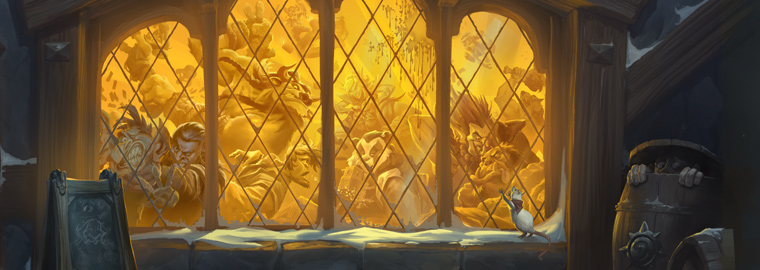
tavern brawl header


Hearthstone fans, rejoice! Arena, Ranked and Casual play are no longer the only three ways to have fun in the collectible card game. Blizzard has announced a great new update that will add Tavern Brawl.


Tavern Brawl is a new game mode where Blizzard sets some whacky conditions for building decks, as well as possibly changing card texts or increasing (and even decreasing) life totals. It’s a fun way to play the game that has been featured by many third-party tournaments in the past, so we’re glad to see Blizzard incorporating something into the game as standard.


The way it works is Blizzard will set up a new “Brawl” each week, with global parameters being applied to everyone who enters. One week might be building a deck where you can’t use any class cards, while next week you could see a zero mana cost Dr. Boom. Crazy, I know. Blizzard hasn’t yet fully detailed the rewards you get for participating in brawls, though they did note that the mode will be free to start (indicating there may be a pay wall — whether you have to use gold or real money — down the line).


card backs


Other changes coming as part of patch 2.7 include the ability to set card backs for individual decks, as well as buying (for .99, no other option) and using the new alternate heroes. These heroes won’t have different class cards or mechanics, but you do get a new face to look at, new emotes and possibly new hero power animations. You can see the Warrior’s new hero — Magni Bronzebeard — in the video ahead.


So when’s it all arriving? Blizzard’s only timeline was “mid-June,” which isn’t very long. We’d hope it’s in time for the weekend, though knowing Blizzard we’re likely to see it around Monday or Tuesday.


[via Blizzard]


Galaxy S5 G900FXXU1BOB7 5.0 Lollipop Update, Silent mode is back


A new Lollipop software update version G900FXXU1BOB7 is hitting on Samsung Galaxy S5 SM-G900F once again.  The G900FXXU1BOB7 is still in Android 5.0 Lollipop base  next to the previous G900FXXU1BOA3 . The latter has just rolled out in United Kingdom at this moment  but the firmware build itself also indicates  a ‘multi CSC’ that also points to other countries in Europe.  So chances are that the rest of Samsung Galaxy S5 SM-G900F users might also get this update soon.


Since we already seen the Android 5.0 in action so there is nothing to expect any major changes about this update. But some significant adverse effect I noticed about the G900FXXU1BOB7 is that the “Silent mode” feature has returned back.  On previous updates we knew that  the “Silent mode” was removed but now you can see it again in status bar.  I also noticed that the screen brightness seem also reduced at around 10% level  which is a bit dimmer than before even I set it up to 100%.  I can’t see any improvements  in battery life performance as it’s still fresh but I’m still monitoring it on a different usage.


Furthermore, the G900FXXU1BOB7 Lollipop update weights  323.39MB in file size. It is held both available via Over-The-Air and Kies but then again can only be seen in UK at this moment. I’ll just keep you updated if and when it also arrives in some countries.


The technical details of the G900FXXU1BOB7 Android 5.0 Lollipop update reads as follows:


  • Device: Samsung Galaxy S5

  • Model number: SM-G900F

  • Android version: 5.0 (Lollipop OS)

  • Baseband version G900FXXU1BOA3

  • Kernel version: 3.4.0-4209230

  • Build number: LRX21T.G900FXXU1BOB7

  • SE for Android status Enforcing

  • AP: G900FXXU1BOB7

  • CSC: G900FOXA1BOB7

  • CP: G900FXXU1BOB7


LRX21T.G900FXXU1BOB7


Again, the G900FXXU1BOA7 is only available for UK’s unbranded Samsung Galaxy S5 SM-G900F users.  The rest of European countries might also start seeing the same update these following days. I still seeing the G900FXXU1BOA3 released for those who got a carrier branded Galaxy S5  G900F. Those who have not seen the Android 5.0 Lollipop update yet, might better manually check it via Over-the-air (OTA) update or using Kies. Below are the guides that shows the basic  method on how to perform a software update on Samsung Galaxy S5.


How to Update the Samsung Galaxy S5 SM-G900F to Official Android 5.0 Lollipop


Samsung always urge us to prepare the following important notes to consider before performing the software update.  I have also added some useful insights why you should follow this procedures to keep your  phone in safe.


Recharge the phone’s battery – You should make sure your device is fully recharged before performing the software update. Do not also remove the battery during the software update is in progress. A power failures may cause damaged to your device that might results as we so-called “soft-bricks”. If this happens your device may just stuck on Samsung logo or welcome screen and can’t reboot normally.


Backup important data – You should back-up your important files, including contacts, emails, messages, photos, videos, apps and other stuff. Like I said while during software update process is interrupted there is a possibility that your data stored from your device internal SD card may lose or deleted when a sudden unexpected failure happened and it forces you to perform a factory data reset which basically wipes your phone’s memory.


Galaxy S5 should no “Root” installed – Your device should not be modified or rooted, there is a certain circumstances that a modified and rooted Galaxy S5 SM-G900F may not accept any official software update anymore or it can accept an update but it might harm your device once the update has made. Learn about the new Samsung KNOX security suite. Most known error that says ‘firmware upgrade encountered an issue, please select recovery mode in Kies and try again‘ or “Your device has been modified Software update are not available” you should try to avoid that from happening.


How to Update Galaxy S5 G900F to  Android 5.0 via Over-The-Air (OTA)


This is usually how the carrier branded or locked Samsung Galaxy S5, performs a software update.  This method is Firmware Update through over the air or called as OTA update, which most often  a notification message will directly sent to you from your network provider or Samsung and notifies you that there is a new update available for download.  If you did not receive any notification messages you can manually check for the update instead.  Doing this you may only tap on your Galaxy S5 SM-G900F Settings>>About Device, tap Software Update.


  • Find “Software update”

  • Slide your finger down the display starting from the top edge of your mobile phone.

  • Tap the settings icon.

  • Tap About device.

  • Tap Software update.


It will automatically tells you that a new update is available or your software is up to date when there is none yet. You can simply tap install now when you want to perform an update or install later. The G900FXXU1BOB7 Android 5.0 update is around 300+ MB in file size while updating via OTA.


How to Update the Galaxy S5 G900F to Android 5.0  Lollipop Thru Kies


Samsung Galaxy S5 Kies Software update download


The second method is a firmware update through Samsung Kies. You may head-over to your  local Samsung support page from where you can download Samsung Kies from there, and install it in your Windows or Mac computer. Choose the new Kies 3 which supports the Galaxy S5 SM-G900F and other Samsung devices running from Android KitKat, and up to Lollipop OS .  Once you installed Kies 3, all you need is connect your Samsung Galaxy S5 SM-G900F to the computer using the USB cable, then simply run and follow Kies on-screen software update instructions.


The post Galaxy S5 G900FXXU1BOB7 5.0 Lollipop Update, Silent mode is back appeared first on GalaxyS5Update.


Lollipop Update G900HXXU1BOB8 on Galaxy S5 SM-N900H, Returns Silent Mode


An official Lollipop update with build version G900HXXU1BOB8 on Samsung  Galaxy S5 SM-N900H  has just recently released in Panama. The latter  is the first Lollipop update that has just started arriving in Latin America alone. Noting that Latin America’s Galaxy S5 software update has some differences than those released in Europe.  According to reports, the G900HXXU1BOB8 Lollipop update differs from those initial released build version G900HXXU1BOA7 and G900HXXU1BOAD as the update itself technically contains the “Silent Mode” option which can be found in the status bar.


In addition, the G900HXXU1BOB8 Lollipop update is much stable compared to those two previous (BOA7 and BOAD) released . It is also has a much improved battery life performance, according to reports.


Since the Galaxy S5 SM-G900H Lollipop update are still rolling out in phases and in a timely manner so the rest of all those Galaxy S5 SM-G900H users around the world may need to wait their turn until the Lollipop update arrives in each respective countries.


Anyway, the technical details of the G900HXXU1BOB8 in Settings>>About device reads as follows;


LRX21T.G900HXXU1BOB8


  •  Device name: Samsung Galaxy S5

  • Model number: SM-G900H

  • Android version: 5.0 (Lollipop OS)

  • Baseband version: G900HXXU1BOB8

  • Kernel version 3.4.0-4235534

  • Build number LRX21T.G900HXXU1BOB8

  • SE for Android status:  Enforcing


The 5.0 Lollipop G900HXXU1BOB8 is an update to previous 4.4.2 KitKat G900HXXU1ANI1 released in Latin America.  The update is now held available in Kies and or thru Over-The-Air (OTA) update.  Below are the step by step guide on how to perform a software update on Samsung Galaxy S5.


How to Update the Galaxy S5 SM-G900H to the Android 5.0 Lollipop


Samsung always advises us to prepare the following important notes to consider before performing the software update.  I have also added some useful insights why you should follow this procedures to keep your  phone in safe.


Recharge the phone’s battery – You should make sure your device is fully recharged before performing the software update. Do not also remove the battery during the software update is in progress. A power failures may cause damaged to your device that might results as we so-called “soft-bricks”. If this happens your device may just stuck on Samsung logo or welcome screen and can’t reboot normally.


Back important data – You should back-up your important files, including contacts, emails, messages, photos, videos, apps and other stuff. Like I said while during software update process is interrupted there is a possibility that your data stored from your device internal SD card may lose or deleted when a sudden unexpected failure happened and it forces you to perform a factory data reset which basically wipes your phone’s memory.


Galaxy S5 has no root – Your device should not be modified and rooted, as there is a certain circumstances that a modified and rooted Galaxy S5 SM-G900H may not accept any official software update anymore or it can accept an update but it might harm your device once the update has made. Learn about the new Samsung KNOX security suite. Most known error that says ‘firmware upgrade encountered an issue, please select recovery mode in kies and try again‘ or “Your device has been modified Software update are not available” you should try to avoid that from happening.


Update to 5.0 Lollipop via Over-The-Air (OTA)


This is usually how the carrier branded or locked Samsung Galaxy S5, performs a software update.  This method is Firmware Update through over the air or called as OTA update, which usually a notification message will directly sent to you from your network provider or Samsung and notifies you that there is a new update available for download.  If you did not receive any notification messages you can manually check fro the update instead.  Doing this you may only tap on your Galaxy S5 SM-G900F Settings>>About Device, tap Software Update.


  • Find “Software update”

  • Slide your finger down the display starting from the top edge of your mobile phone.

  • Tap the settings icon.

  • Tap About device.

  • Tap Software update.


It will automatically tells you that a new update is available or your software is up to date when there is none yet. You can simply tap install now when you want to perform an update or install later.


Update to 5.0 Lollipop Through Kies


Samsung Galaxy S5 Kies Software update download


The second method is a firmware update through Samsung Kies. You may head-over to your  local Samsung support page from where you can download Samsung Kies from there, and install it in your Windows or Mac computer. Choose the new Kies 3 which supports the Galaxy S5 SM-G900H and other Samsung devices running with Android 4.4.2 and up OS .  Once you installed Kies 3, all you need is connect your Samsung Galaxy S5 SM-G900H to the computer using the USB cable, then simply run and follow Kies on-screen software update instructions.


The post Lollipop Update G900HXXU1BOB8 on Galaxy S5 SM-N900H, Returns Silent Mode appeared first on GalaxyS5Update.