Affichage des articles dont le libellé est Easy. Afficher tous les articles

lundi 6 juillet 2015

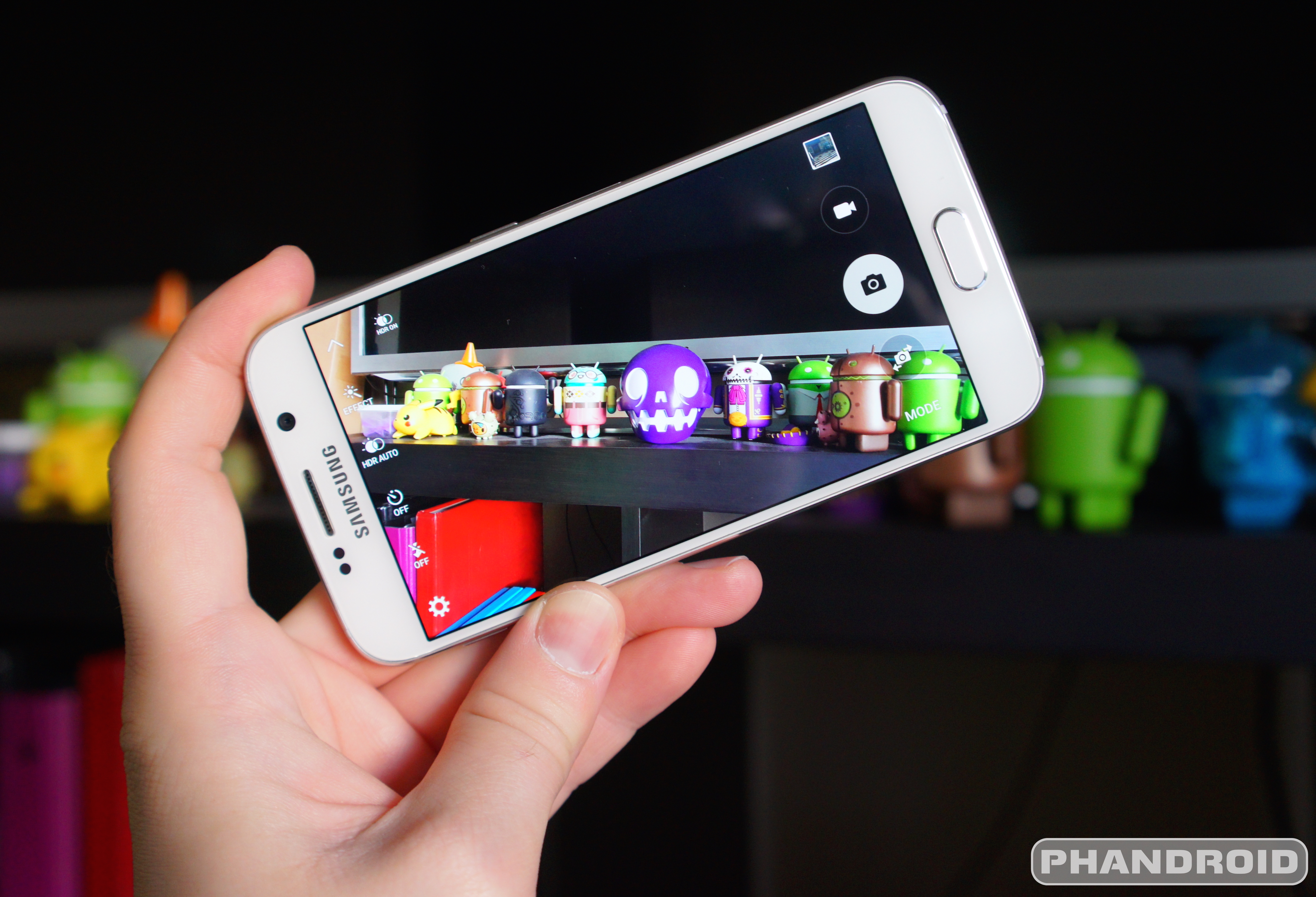
Android 5.1 for the Samsung Galaxy S6 will bring super easy exposure controls


Samsung Galaxy S6 DSC09411


Without question, the Samsung Galaxy S6 camera is one of the best we’ve ever used — even when paired against the iPhone 6. We raved about it in our review. But no matter how amazing the quality of a smartphone’s camera, there are those times when it just can’t get some things right. Like the exposure.


Whether it’s a brightly lit background, or just simply too much direct sunlight, sometimes you need to be able to manually change the camera’s exposure setting and diving into menus or settings isn’t the most effective way to do this. Apple knows this and it’s one of the reasons the iPhone 6 was one of the first to introduce super easy and quick exposure adjustments in their camera app. Recently, Motorola followed suit with an update to their camera app which added similar functionality on the Motorola Moto X (2014) and Motorola DROID Turbo.


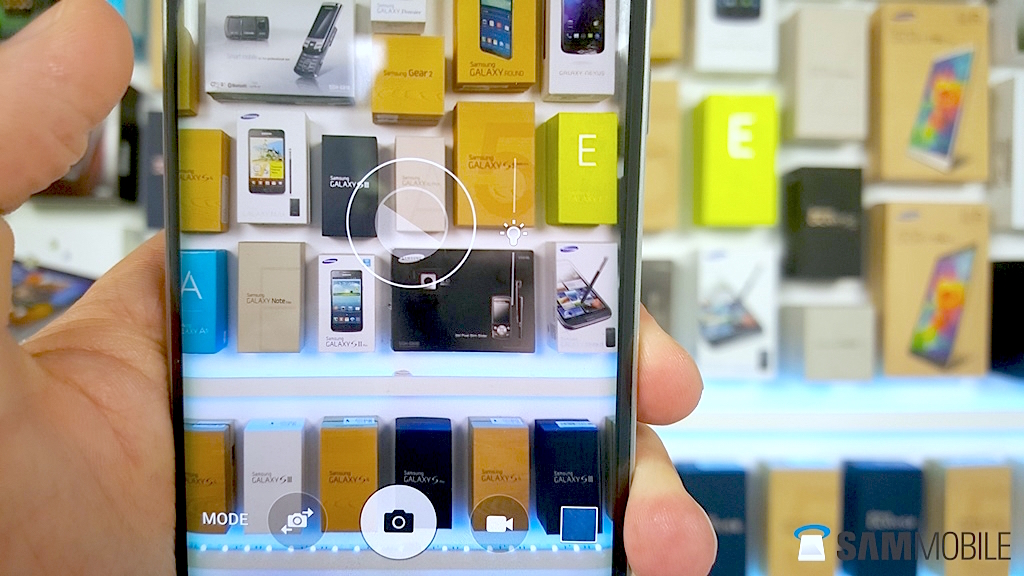
Samsung Galaxy S6 easy exposure controls


Today, the folks at SamMobile have revealed a similar feature headed to the Samsung Galaxy S6 and Samsung Galaxy S6 Edge, and arrives with the Android 5.1 update. The update is also said to bring other camera improvements like support for RAW shooting, and manual shutter controls while in Pro Mode. Android 5.1 is rumored to arrive for the Galaxy S6/Edge sometime in June for international models, although timing for carrier models remains to be seen.


Ads on Google Search will soon have a “buy” button for easy purchasing


Google Search icon


We’re sure Google has a ton of new developments in store for this year’s Google I/O developers conference, but they’re already spilling the beans on one new feature that will help them drive business to their customers and better compete with Facebook and Amazon’s ad business.


Speaking in an interview with Re/code, Google Chief Business Officer Omid Kordestani revealed that a “buy” button would soon be making its way to ads featured in Google Search. According to Kordestani, Google realizes that 90% of commerce is still done offline, and they’re looking to change that.


With a buy button prominently displayed in Google ads, it’ll help eliminate a few steps prospective buyers will likely have to go through just to buy something they see in an ad. That means more money for businesses and more money for Google. We’re sure to learn more during this year’s Google I/O kicking off tomorrow.


LG Watch Urbane teardown shows the battery is pretty easy to replace


lg watch urbane guts


iFixIt has done their tried and trusted teardown on the new LG Watch Urbane, the latest Android Wear smart watch from the South Korean company. As beautiful as the smart watch is on the outside, we’re always curious about the bits that you won’t often get to see in your day-to-day usage.


The teardown didn’t reveal anything out of the ordinary. LG still knows how to fit square circuitry into a circular chassis. Assembly is very clean and makes us confident the smart watch can stand the test of time.


One thing iFixit notes is that the battery is quite easy to replace if you find it’s on its last legs. This is thanks in part to a motherboard that is held in place with standard Philips-sized screws and a just a few connectors to deal with. Watch band replacement is also going to prove to be quite easy, though this is by design and should be possible even without fully dismantling the watch.


Unfortunately the display is where things get trickier, as LG has a multi-layered design that features a good deal of adhesive. While it’s possible to completely remove the display without breaking anything, it will require you to re-adhere the display and glass. That could become a messy job for someone who isn’t experienced, so the Watch Urbane was awarded a repairability score of 7/10 (10 is easiest to repair). Take a look at the full teardown notes at the source link if you’re curious.


[via iFixIt]


Easy Root AT&T Samsung Galaxy S5 Active SM-G870A on 4.4.2 G870AUCU1ANE4


Do you need root on your AT&T Samsung Galaxy S5 Active? Here’s the simplest root method without even using a computer and you may then have a rooted phone in just a few minutes. This root method uses Geohot’s Towelroot that has already tested  with Galaxy S5 flagship but also works on AT&T Galaxy S5 Active.


In addition, all you need is grab the towelroot.apk file and install it on your phone. You also need the latest SuperSU app so you can update the SU binary and so you a have a working root.


Note: Rooting your phone will void it’s service warranty. So if you care enough about your phone’s warranty don’t touch it. This guide is intended for advanced users only. Use this guide at your own risk.


How to Root G870AUCU1ANE4 4.4.2 KitKat on AT&T Galaxy S5 Active SM-G870A


The root may only work on the firmware build number 4.4.2 G870AUCU1ANE4, as there is a limitation to the Towelroot and it may or may not work on any latest software updates ahead from June 3rd 2014. This means that the towelroot was only build on firmware builds not exceeding to the said date. If you forcefully do so, then it’s up to you.


Root AT&T Galaxy S5 Active


As I mentioned, this root method is so very easy,  all you need is run your the browser app like Google Chrome on your AT&T Galaxy S5 Active SM-G870A then you can simply go to towelroot website and download the towelroot apk. Install it and decline what the warning message tells you. Once downloaded run the the towelroot.apk then  hit the button called “Make It Rain”. From there you may then manually install the SuperSU so you can update the SU binary. Grab it from Chainfire or at Play Store. If you need more tweaks, you can also install Busybox and Xposed framework. If you want to confirm that the root was properly installed you may then use the Root checker app from Play Store.


Step by step guide:


1.) enable the “Allow to install apps from unknown sources” by going to Settings>>Security and then check the box next to Unknown Sources.
2.) Open your phone’s intenet browser, then type the website address towelroot.com.
3.) Tap the Lambda sign from the website to begin downloading the towelroot.apk
4.) Locate the towelroot.apk  run it then then  simply click the button called “make it rain”. Wait until it finishes and the phone reboot.
5.) Update the SuperSU app from chainfire website and lastly install it.


So that’s it! Just let us know if this root method perfectly worked on your AT&T Galaxy S5 Active SM-G870A running on Android 4.4.2 G870AUCU1ANE4 KitKat update. For further information if this root method truly worked then head-over to the


If you have doubt about this root method that might not truly worked then head-over to the source link below.


Source: XDA-Developers


The post Easy Root AT&T Samsung Galaxy S5 Active SM-G870A on 4.4.2 G870AUCU1ANE4 appeared first on GalaxyS5Update.